Optimization
How to Reduce GIF File Size Without Losing Quality (2026)
Oversized GIF files are a common frustration when uploading animations to platforms with strict file size limits. Because GIFs store image data frame-by-frame, they can quickly grow to tens of megabytes. Fortunately, you can reduce GIF file sizes significantly without making them look blurry or choppy by applying specific compression, scaling, and frame-reduction techniques. This guide covers the most effective methods to optimize your GIFs.
Quick Answer
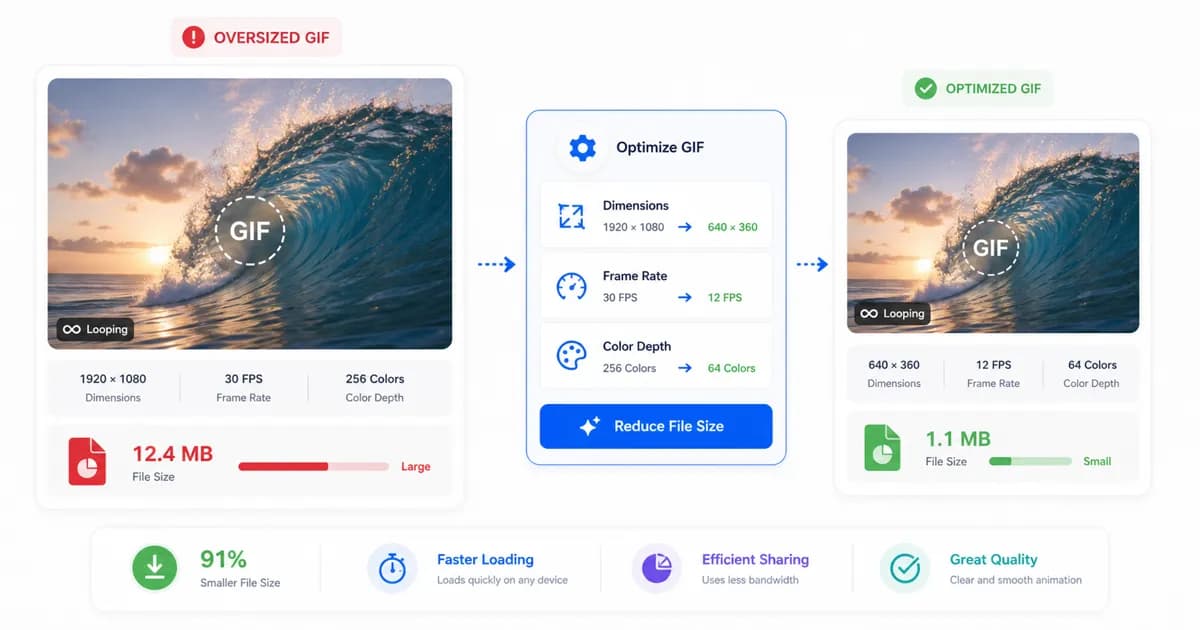
The most effective way to reduce GIF file size is to first trim the duration, then reduce the resolution (width), and finally lower the frame rate to 10 FPS. For further size reduction, apply lossy LZW compression or reduce the color palette size.
Why GIF files get so large
To compress a GIF effectively, you must understand why it gets so heavy. Unlike modern video formats (such as MP4 or WebM) that use temporal compression to only store the changes between frames, the GIF format stores every single frame as a separate, complete image.
Additionally, GIF uses LZW compression, which was designed for flat areas of solid color. Photographic video frames containing complex textures, gradients, camera noise, and movement do not compress well with LZW. Every slight change in color or camera shake requires the format to store a completely new set of pixels, causing the file size to inflate rapidly.
This means that the total size of your GIF is a direct product of three variables: the total number of frames (duration multiplied by frame rate), the resolution (width multiplied by height), and the complexity of the color palette. If any one of these fields scales up, the final file size will balloon dramatically.
Furthermore, modern digital camera sensors capture minute high-frequency patterns—such as sensor grain and luminance noise—even when filming seemingly flat walls or screens. Under LZW compression rules, this invisible noise breaks pattern sequences, preventing the compression dictionary from finding repetitive patterns and inflating the final byte size.
The five most effective ways to reduce GIF size
To shrink your file sizes while maintaining visual quality, apply these five optimization methods in order of impact.
First, trim the duration. Cut away any unnecessary frames at the start or end of the animation. Shorter loops require fewer frames, which reduces the file size linearly. Second, resize the width. Since resolution scales geometrically, dropping your width from 800px to 480px can reduce the file size by more than half. Third, lower the frame rate. Pushing FPS down to 10 or 12 maintains smooth motion while discarding redundant frames. Fourth, use lossy GIF optimization. This process discards a small amount of visual detail to make the LZW compression more efficient. Fifth, reduce the color depth from 256 colors to 128 or 64 colors, which is highly effective for simple graphics and software screenshots.
- Trim your animation loops aggressively to focus only on the essential action.
- Resize the pixel dimensions; reducing the width is the fastest way to shrink your files.
- Set a target frame rate of 10 FPS to balance smooth motion and small file weight.
- Apply lossy compression to drop redundant pixels and maximize LZW compression efficiency.
- Limit the color palette size for simple graphics, charts, and interface screenshots.
Advanced lossy LZW compression and color reduction algorithms
When simple settings modifications are not enough to bring your GIF below a strict upload ceiling, you must turn to advanced optimization algorithms. Standard GIF compression is completely lossless under the LZW dictionary system. However, modern compressors (like Gifsicle) employ a "lossy" LZW optimization. This process analyzes adjacent pixels and alters color values of noise and fine gradients to match matching patterns. By matching values, the compressor creates longer repetitive sequences of byte data, which LZW can compress with much higher efficiency.
Additionally, color reduction algorithms can be tailored to the image type. A photographic clip benefits from a "diffusion" color reduction that spreads out pixel noise, but this noise increases file weight. By switching to a "median cut" algorithm with no dithering for screenshots or interface captures, you eliminate pixel noise entirely. This yields a clean, flat-color file that compresses beautifully. Utilizing these algorithms allows web engineers to reduce GIF files by up to 50% without affecting visual readability.
Implementing an intelligent color quantizer algorithm like NeuQuant (neural-network color quantization) also helps pick the best possible colors for files with complex lighting, avoiding the visual harshness that simple color truncation causes. When combined with temporal dithering reduction—which limits the pixel variations between consecutive frames—lossy compression can compress the final image dictionary down to a fraction of its original footprint. By eliminating subtle changes in static background regions, the compiler focuses all of its resource allocation on the foreground subjects that actually carry user visual attention.
Suggested settings for common platforms
Different web platforms and messaging applications enforce different upload limits. Designing your exports with the destination in mind ensures your files upload successfully without being compressed or blocked by the platform.
For business messaging tools like Slack or Microsoft Teams, keeping files under 2MB ensures they load instantly in chat bubbles. For public social media platforms like Twitter/X, a limit of 5MB is standard for optimal loading speeds. In contrast, technical documentation databases or help center resources can support larger files (up to 8MB), but they should be optimized to protect page load performance. Many popular content management systems (such as WordPress or Shopify) automatically regenerate images into multiple thumbnails when you upload them; hosting a pre-optimized GIF prevents these platforms from running heavy, automated processing that breaks the LZW compression mapping and ruins the visual quality.
| Platform | Max Upload Limit | Recommended Width | Recommended FPS | Target File Size |
|---|---|---|---|---|
| Discord (Free Tiers) | 8 MB | 320px to 480px | 8 to 10 FPS | Under 8 MB |
| Slack Chat / DMs | No hard limit (but slows down) | 320px | 10 FPS | Under 2 MB |
| Twitter / X Timeline | 15 MB (Web) / 5 MB (Mobile) | 480px | 10 FPS | Under 3 MB |
| Email Campaigns | 1 MB (Best practice) | 320px to 400px | 8 FPS | Under 800 KB |
When to switch to MP4 or WebP
Sometimes, you will hit a limit where compressing a GIF further makes it look unacceptably pixelated, grainy, or choppy. This is the moment to redirect your design choices and ask whether the GIF format itself is appropriate for your project.
If your target platform supports MP4 videos, switching formats is the ultimate optimization move. An MP4 video can compress the same visual detail into a file that is 5 to 10 times smaller than a GIF. Alternatively, animated WebP is a modern web format that supports full 24-bit color and transparency, making it an excellent replacement for GIFs on modern websites.
Frequently Asked Questions
Why does my GIF file size increase when I crop it?
This unexpected issue is usually caused by the encoder using a less efficient color palette or adding complex dithering after the crop. Make sure your tool is configured to generate a custom, optimized palette for the cropped dimensions.
What is a lossy GIF, and is it bad?
A lossy GIF has been processed by an optimizer that discards subtle pixel variations to make the image compress better. It is not bad; in fact, applying moderate lossy compression can reduce file sizes by 30% to 50% with almost no visible quality difference.
How do I compress a GIF for an email newsletter?
To ensure fast load times in email clients, keep your GIF width under 400px, frame rate at 8 to 10 FPS, and duration under 3 seconds. Use a color depth of 128 colors to keep the file weight below 1MB.
Does reducing the color count make a GIF look bad?
For photographic images or videos with lots of gradients, reducing colors can cause visible banding. However, for screen recordings, software demos, and flat graphics, reducing colors is a highly effective way to shrink files without affecting quality.
Can I compress a GIF using standard file zip software?
No. Zip compression is not effective on GIF files because the image data is already compressed using the LZW algorithm. To shrink a GIF, you must adjust its internal settings like resolution, frame rate, or color depth, or use a lossy GIF optimizer tool that edits the frames themselves.
How does cropping affect GIF file size?
Cropping removes pixels from the outer edges of the frame. Because it reduces the resolution of each frame, cropping is a highly effective way to shrink the file size while keeping the visual quality of the main subject intact.
Ready to try it?
Convert MP4 to GIF free
Trim the clip, choose the best settings, and export locally in your browser.
Open the converter