Mobile
How to Convert MP4 to GIF on Android (2026 Guide)
Converting MP4 videos to animated GIFs on Android is simple when you know the right tools. Android devices shoot high-resolution video that can quickly create massive, unsharable GIF files. In this guide, we will walk through the best ways to convert video files to optimized GIFs directly on your Android tablet or phone using Chrome, native tools, or lightweight apps.
Quick Answer
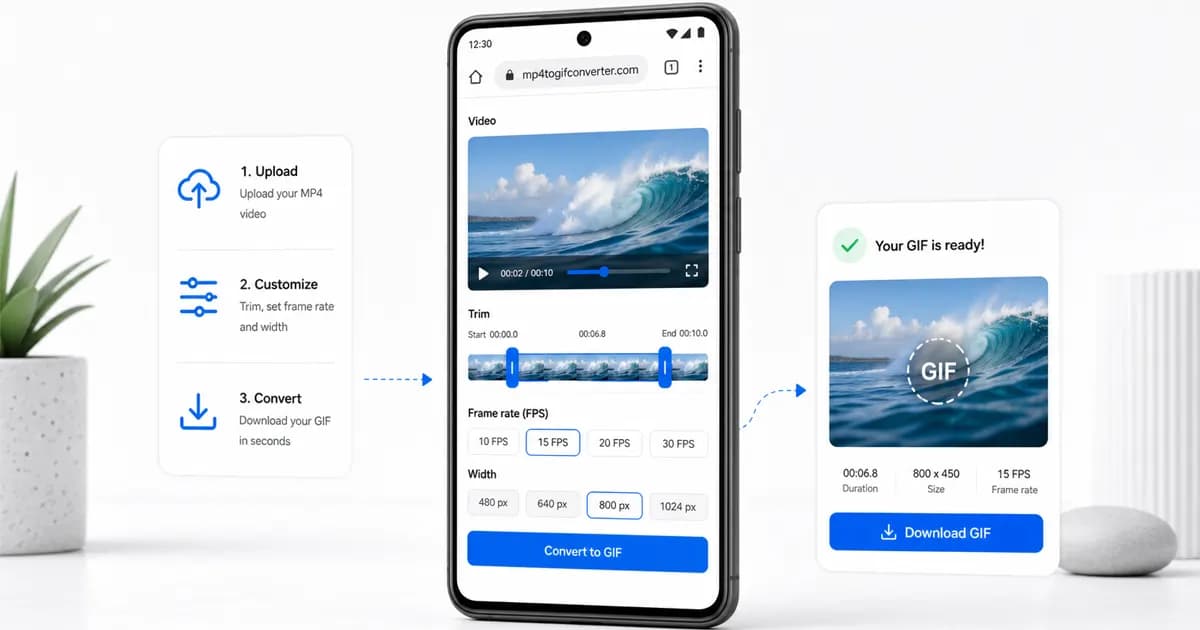
The most reliable way to convert MP4 to GIF on Android is using Chrome with a local converter. This runs client-side on your device, meaning you do not upload any data, ensuring complete privacy and fast processing.
Method 1: use Google Chrome for a fast browser-based conversion
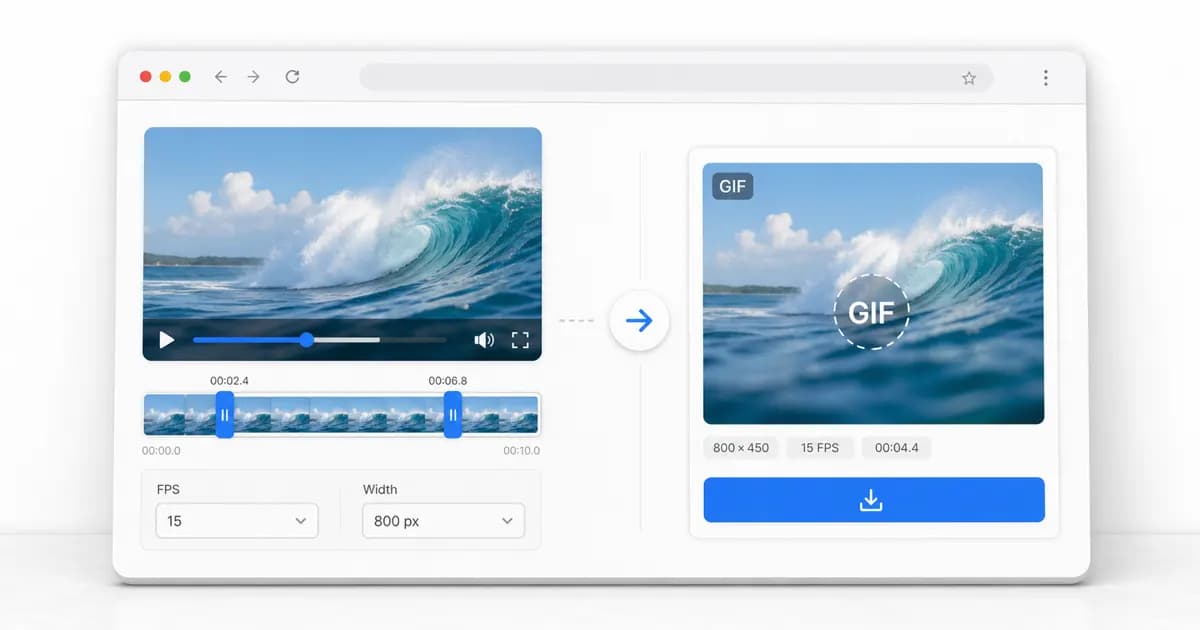
Android's integration with Google Chrome makes browser-based conversion extremely efficient. By navigating to a local converter page, you can access your device's hardware capabilities directly through WebAssembly. This approach processes the video in your browser cache, eliminating the need to upload heavy files over mobile data networks.
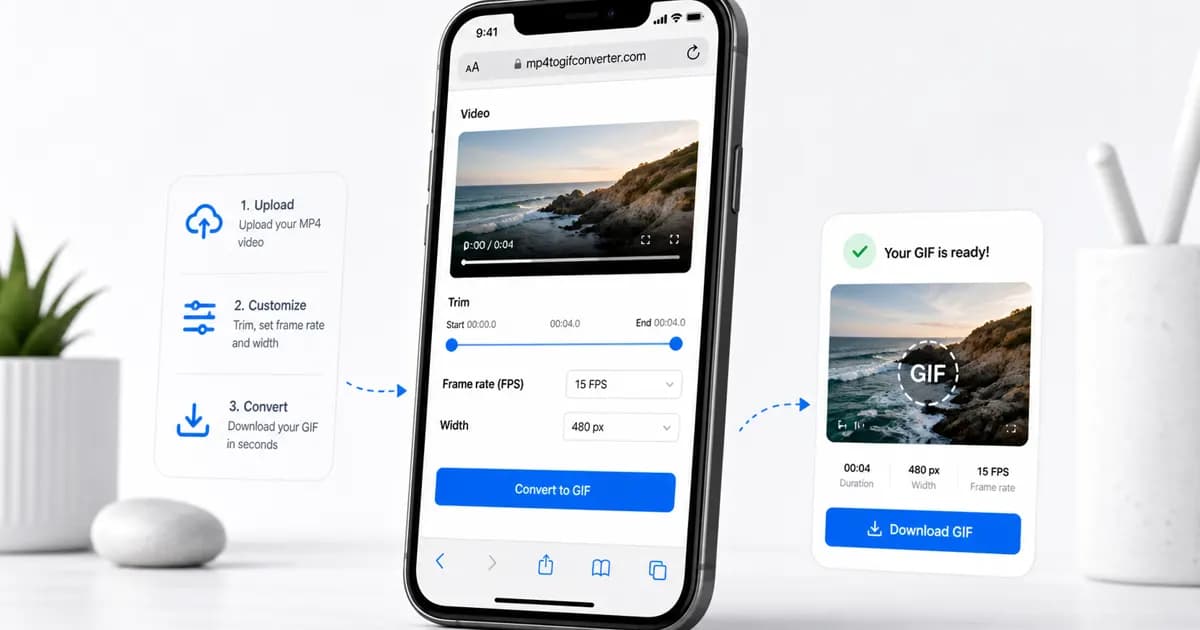
To start the process, tap the upload area on the page. Android will open the system file selector, allowing you to choose videos from your Downloads folder, local device storage, Google Drive, or Google Photos. Once you select the MP4 file, Chrome loads the video metadata and displays editing controls.
Use the slider controls to isolate the visual clip you want to loop. To keep the output lightweight, trim the video to under 5 seconds. Configure your frame rate to 10 FPS and resolution to 480px, then hit convert. Once complete, save the GIF directly to your Downloads folder.
Method 2: check whether your gallery app can help
Depending on your phone manufacturer, you may have native GIF creation tools built directly into your pre-installed apps. For example, Samsung Galaxy devices feature a powerful GIF creator inside the default Samsung Gallery application.
On a Samsung device, open a video, tap the three dots menu, and select "Open in Video Player." From there, you will see a small "GIF" button on the screen. Tapping this icon allows you to select a section of the video, adjust the playback speed (1x, 2x, or backward), and save the clip. Google Photos also offers similar basic features under the "Utilities" or "Edit" menu, where you can convert short bursts or video clips into animations.
While native gallery tools are highly convenient, they often lack granular control over technical settings. You cannot set an exact pixel width or choose a specific frame rate. This lack of settings frequently results in files that are either too large to upload or look excessively compressed and blurry. If you need clean, optimized files, using Chrome with a dedicated converter is a better option.
Method 3: use an app when you need extra editing
If you need to edit your GIFs by adding text captions, painting on frames, or inserting overlays and stickers, you can download a third-party app from the Google Play Store. Popular tools like GIF Maker-Editor or GIPHY provide robust creative controls for mobile users.
To use these apps, open the tool, grant permission to access your media library, and import your MP4 video. The editor interface lets you cut frames, adjust color levels, apply filters, and add animated text. When you export, the app compiles the GIF.
The main downside of downloading dedicated apps is the user experience. Many free tools contain intrusive fullscreen advertisements, place watermarks on your finished animations, or restrict high-resolution exports behind in-app purchases. If you only need a standard video-to-GIF conversion, browser-based tools offer a much cleaner and faster alternative.
Best settings for Android GIF exports
Android's cameras capture video at high resolutions and frame rates, which can make GIF files balloon in size. Selecting the right conversion settings is key to producing a file that is lightweight and easy to share.
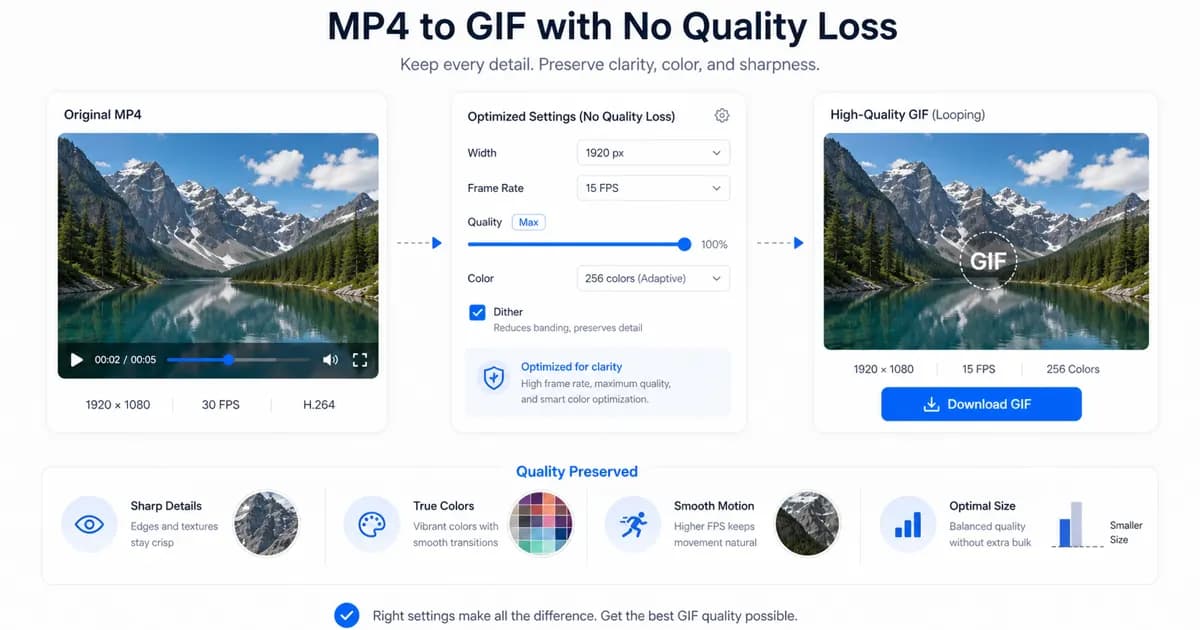
A width of 480px is the optimal default for most chat apps and social networks. Use 320px if you need to stay under tight upload limits (such as Discord free accounts), and only go up to 640px if readability is essential. Stick to 10 FPS for a good balance of motion and file size.
- Keep mobile video clips short—ideally under 5 seconds—to manage device memory usage.
- Use 10 FPS as your baseline frame rate; only go higher if the clip contains rapid motion.
- Export at 480px width to balance image clarity with download speeds on mobile networks.
- Avoid heavy transitions and complex backgrounds, as they make LZW compression less effective.
| Use Case | Resolution (Width) | Frame Rate (FPS) | File Size Target |
|---|---|---|---|
| Chat Messages (WhatsApp, Slack) | 320px to 400px | 8 to 10 FPS | Under 2 MB |
| Social Media (Twitter/X) | 480px | 10 FPS | Under 3 MB |
| Technical Guides / Help Articles | 640px | 10 to 12 FPS | Under 5 MB |
| High-Quality Web Presentation | 800px | 12 to 15 FPS | Under 8 MB |
Dealing with Android browser limitations and performance
Because Android runs on a massive ecosystem of hardware—ranging from entry-level budget phones to top-tier flagship devices—system memory (RAM) management is a critical factor during client-side media conversions. Next-generation tools running WebAssembly compile frames directly in the browser tab cache. On devices with less than 6GB of RAM, compiling a long high-resolution video can occasionally trigger Android's out-of-memory handler, causing the browser tab to crash or reload automatically.
To prevent performance bottlenecks, always ensure that other active browser tabs and background applications are closed before beginning a conversion on an older phone. Flagship processors handle the multi-threaded compilation in a few seconds, but budget chipsets can lag. If you experience slow exports or browser crashes, immediately reduce your input video resolution to 320px and limit the trim length to a maximum of 3 seconds. This reduces the computational load and ensures a successful, private compilation.
Frequently Asked Questions
Where are my saved GIFs stored on my Android device?
When you download a GIF from Chrome, it is saved in your device's Downloads folder. You can access it using any file manager app (like Files by Google) or view it in your Gallery or Google Photos app under the "Downloads" album.
Why does my GIF look blurry or pixelated after conversion?
This is usually caused by choosing a resolution that is too low (like 240px) or using an aggressive compression setting. If your source video has high detail, try exporting at 480px or 640px width while keeping the frame rate at 10 FPS.
Can I convert WebM videos to GIF on Android?
Yes. Android devices natively support the WebM format. Our browser-based converter can process WebM, MP4, and other popular video formats directly inside Google Chrome.
How do I send a GIF in Android messages?
You can attach a saved GIF from your Downloads folder using the attachment icon in your messaging app, or use an Android keyboard (like Gboard) that has built-in GIF search and sharing tools.
Why is the conversion slow on my Android phone?
Since browser-based conversion runs locally on your device, processing speed depends on your phone's processor. Older or budget Android devices may take longer to compile frames. To speed up the process, close other browser tabs and use shorter video clips.
Ready to try it?
Convert MP4 to GIF free
Trim the clip, choose the best settings, and export locally in your browser.
Open the converter