
Step 1
Upload your file
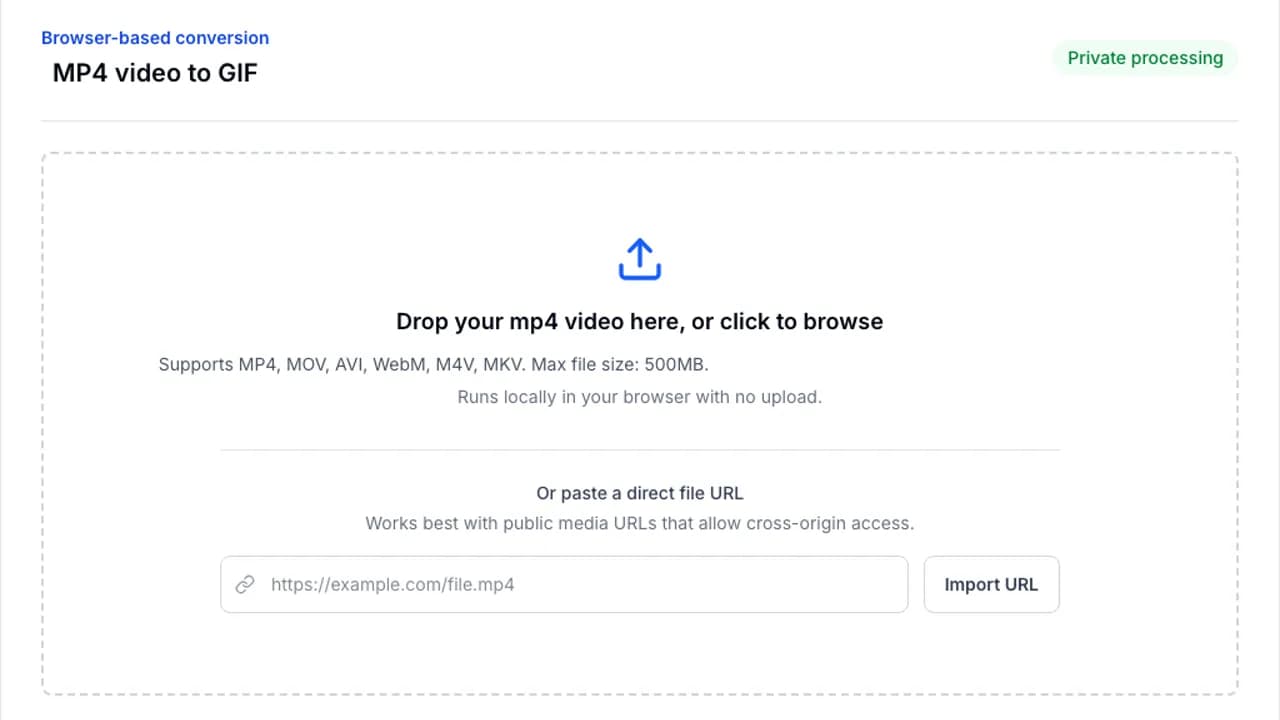
Drop your file into the converter or browse from your device. Processing stays in your browser.
No upload. No watermark. No signup.
Turn MP4 videos into sharp animated GIFs directly on your device. Trim the clip, set the frame rate, choose a width, and download the result without sending your file anywhere.
Browser-based conversion
Or paste a direct file URL
Works best with public media URLs that allow cross-origin access.
The fastest workflow is also the safest one: upload your clip, fine-tune the settings, and export locally.
Step 1
Drop your file into the converter or browse from your device. Processing stays in your browser.
Step 2
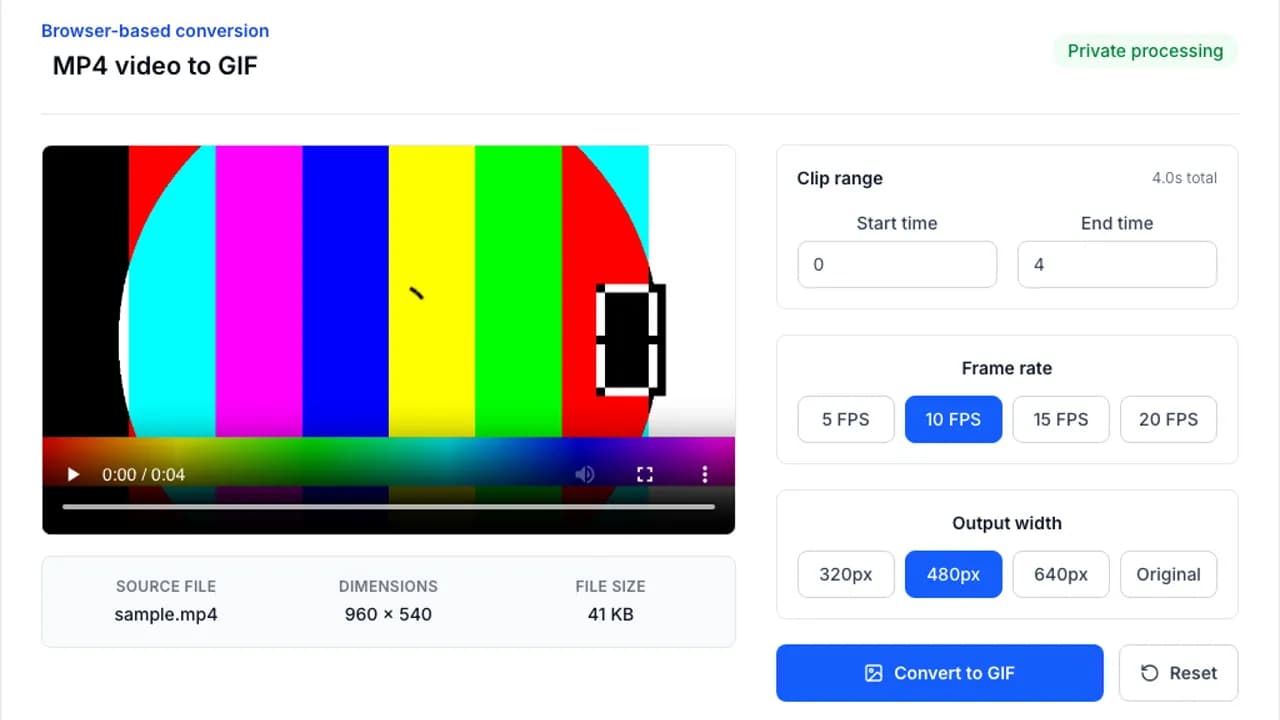
Adjust clip length, frame rate, width, or optimization settings to match the platform you are targeting.
Step 3
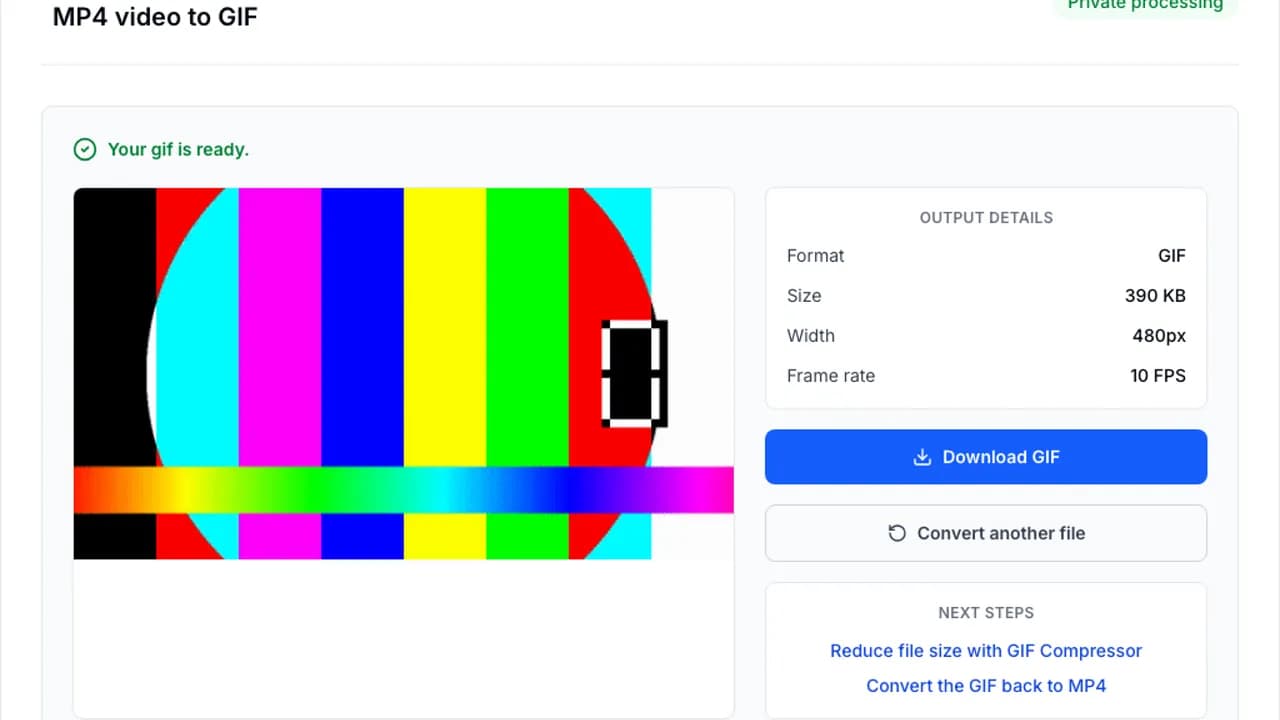
Run the conversion with FFmpeg.wasm, preview the result, and save the finished file immediately.
The goal is simple: give you a clean converter that feels fast, trustworthy, and useful on the first try.
Your file never leaves your device. The conversion runs locally with FFmpeg.wasm in your browser.
No signup, no queue, and no server-side processing delay. Start converting as soon as your file loads.
Use the tools as often as you need. No account, no watermark, and no paywall around core exports.
Trim the clip, pick the width, adjust frame rate, and export sharper results than one-click converters.
A few small settings changes make a huge difference to file size and clarity.
Jump into the next converter without starting over.
Convert animated GIFs to MP4 video files online. Free, no signup, no watermark, and processed locally in your browser.
Convert WebM to GIF online for free. No signup, no watermark, and no file upload required.
Convert MOV to GIF online. Free, private, and easy to use from iPhone, iPad, or Mac screen recordings.
Convert AVI to GIF online for free. Trim old video clips, resize them, and export locally with no signup.
Compress GIFs online to reduce file size. Resize, lower FPS, and optimize colors directly in your browser.
Convert animated GIFs to WebP online. Get smaller files and keep animation quality in a modern format.
Answers to the questions people ask most before converting a file.