Quality
MP4 to GIF Without Quality Loss: Best Settings (2026)
When converting video files to GIFs, many users seek "lossless" conversion. However, the reality of the GIF format makes true lossless conversion technically impossible. Because GIF is limited to a maximum of 256 colors per frame, converting a modern, 24-bit true-color video requires color reduction. This guide explains how color quantization works and how to choose settings that preserve sharpness, motion, and color accuracy.
Quick Answer
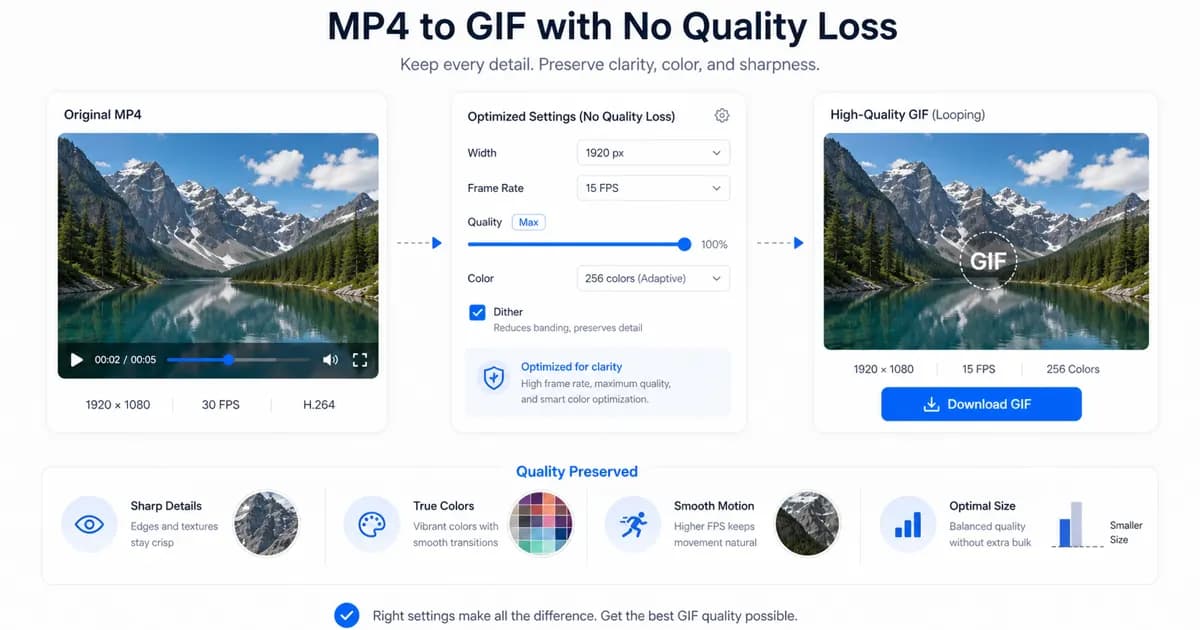
To achieve the highest visual quality in a GIF, keep the clip short, use a custom color palette generated from the source video, set a resolution of 640px or 800px, and select 12 to 15 FPS for smooth, fluid motion.
What “no quality loss” really means for GIFs
To understand quality loss, you must understand the limitations of the Graphics Interchange Format (GIF), which was designed in 1987. Modern video files use true color, meaning they can display over 16 million unique colors. A GIF, on the other hand, is restricted to a maximum of 256 colors per frame. This means that converting a detailed video containing gradients, shadows, and subtle color transitions will always require a process called color quantization.
During color quantization, the converter reduces the millions of colors in the video to a selected palette of 256 colors. If this process is handled poorly, the output will suffer from severe color banding, where smooth gradients look like concentric blocks of flat color. To make the transitions look smoother, encoders use dithering, which scatters pixels of different colors to trick the eye. While dithering improves color blending, it can introduce a grainy, noisy texture to the image.
Therefore, "no quality loss" in GIF conversion actually refers to minimizing the visual impact of color quantization and dithering. This is achieved by creating a custom color palette tailored specifically to the colors present in your source video, rather than relying on a generic color map.
Settings that preserve more detail
If your priority is maintaining maximum image detail, you must configure your output settings carefully. Resolution is a key factor. While a width of 480px is standard for general sharing, raising the width to 640px or 800px will keep fine details and text legible. However, because resolution increases the total pixel count exponentially, high-resolution GIFs will quickly become too heavy for web pages.
Frame rate also directly impacts perceived quality. A higher frame rate makes motion look smoother and more natural. While 10 FPS is acceptable for basic loops, using 15 FPS makes cursor movements, UI transitions, and hand gestures look fluid. Avoid going up to 24 or 30 FPS, as the massive file size increase rarely justifies the subtle visual improvement.
To balance the high resolution and frame rate, you must shorten the clip duration. A 2-second clip exported at 800px and 15 FPS will look incredibly sharp and run smoothly while keeping the file size manageable. In contrast, trying to export a 10-second clip with those same settings will create an unmanageable file that will crash browser tabs and fail to upload.
- Generate a custom color palette for each individual video to prevent washed-out colors and heavy banding.
- Export at 640px or 800px width only when legibility of fine details, like text or interface buttons, is critical.
- Select 12 to 15 FPS to ensure motion looks fluid and professional.
- Keep your high-quality clips short—ideally under 3 seconds—to prevent the file size from exploding.
Why palette generation matters
The quality of a GIF is largely determined by how the color palette is generated. Basic conversion tools use a single-pass encoding process with a fixed, global color palette. This global palette is a general selection of 256 colors designed to cover all scenarios. However, if your video contains very specific colors—such as a deep blue ocean or a neon sunset—the global palette will lack the necessary color depth, leading to a dull, blocky image.
High-quality converters use a two-pass process. In the first pass, the encoder analyzes every frame of the input video to identify the most common colors. It then builds a custom 256-color palette tailored specifically to that video. In the second pass, the encoder maps the video frames to this custom palette, applying optimized dithering to smooth out gradients.
This two-pass method is the secret behind professional-looking GIFs. It ensures colors remain accurate, gradients look natural, and details are preserved. When using command-line tools like FFmpeg, you must specify the palettegen and paletteuse filters to activate this workflow.
When MP4 or WebP is a better choice
If you need true lossless quality and smooth playback without massive file sizes, you should consider using a different format. While GIF is widely compatible, it is an extremely inefficient way to store animation. Modern alternatives like MP4 and WebP offer superior compression and image quality.
MP4 files use advanced video codecs that compress data highly efficiently. Instead of storing every single frame as an independent image, MP4 uses temporal compression to store only the pixels that change between frames.
This compression efficiency means that an MP4 video will almost always be significantly smaller than an equivalent GIF. For example, a high-quality 5-second animation might be a 15MB GIF, but only a 1.2MB MP4 video. This massive difference in file weight translates directly to faster page load speeds and reduced data consumption.
| Format | Color Depth | Transparency | File Size Efficiency | Best Used For |
|---|---|---|---|---|
| GIF | 8-bit (256 colors max) | Simple index transparency | Very low efficiency | Universal sharing, email marketing, chat apps |
| MP4 | 24-bit (16M+ colors) | No native transparency | Very high efficiency | Websites, product pages, high-definition loops |
| WebP | 24-bit (16M+ colors) | Full alpha transparency | High efficiency | Modern web design, transparent UI animations |
Frequently Asked Questions
Is it possible to convert MP4 to GIF with zero quality loss?
Technically, no. GIF is limited to a 256-color palette, while MP4 supports millions of colors. Some quality reduction is inevitable due to color quantization, but you can minimize it by generating a custom color palette for your video during conversion.
What is dithering, and how does it affect GIF quality?
Dithering is a technique where pixels of different colors are arranged in patterns to create the illusion of smooth gradients. While it prevents harsh color banding, it can sometimes introduce a grainy texture and slightly increase the final file size.
Why does my GIF look grainy after conversion?
A grainy appearance is usually caused by the dithering algorithm trying to represent complex gradients with a limited set of colors. To reduce grain, try simplifying the colors in your source video or adjusting the dithering intensity in your encoder settings.
Which is better for high-quality loops: GIF or WebP?
WebP is vastly superior for high-quality loops. It supports full 24-bit color and better compression, allowing you to create sharp animations with transparency at a much smaller file size. However, some older email clients and chat platforms still only support GIF.
How does FFmpeg achieve high-quality GIF conversion?
FFmpeg achieves high quality by running a two-pass conversion. The first pass uses the "palettegen" filter to create a custom 256-color palette based on the video's contents, and the second pass uses the "paletteuse" filter to apply this palette to compile the GIF.
Ready to try it?
Convert MP4 to GIF free
Trim the clip, choose the best settings, and export locally in your browser.
Open the converter