Mobile
How to Convert MP4 to GIF on iPhone (3 Methods, 2026)
Converting an MP4 video to a shareable animated GIF on an iPhone can be done in several ways. While iOS does not feature a simple "save as GIF" button inside the Photos app, you can easily perform the conversion using the native Safari browser, Apple's pre-installed Shortcuts application, or specialized third-party tools. This guide covers the three best methods to create GIFs on your iPhone without losing image quality.
Quick Answer
The fastest way to convert iPhone videos to GIF is using Safari with a local browser-based tool. This method requires no app downloads, processes the video locally on your device for absolute privacy, and provides precise settings to keep file sizes under messaging limits.
Method 1: use Safari with no extra app
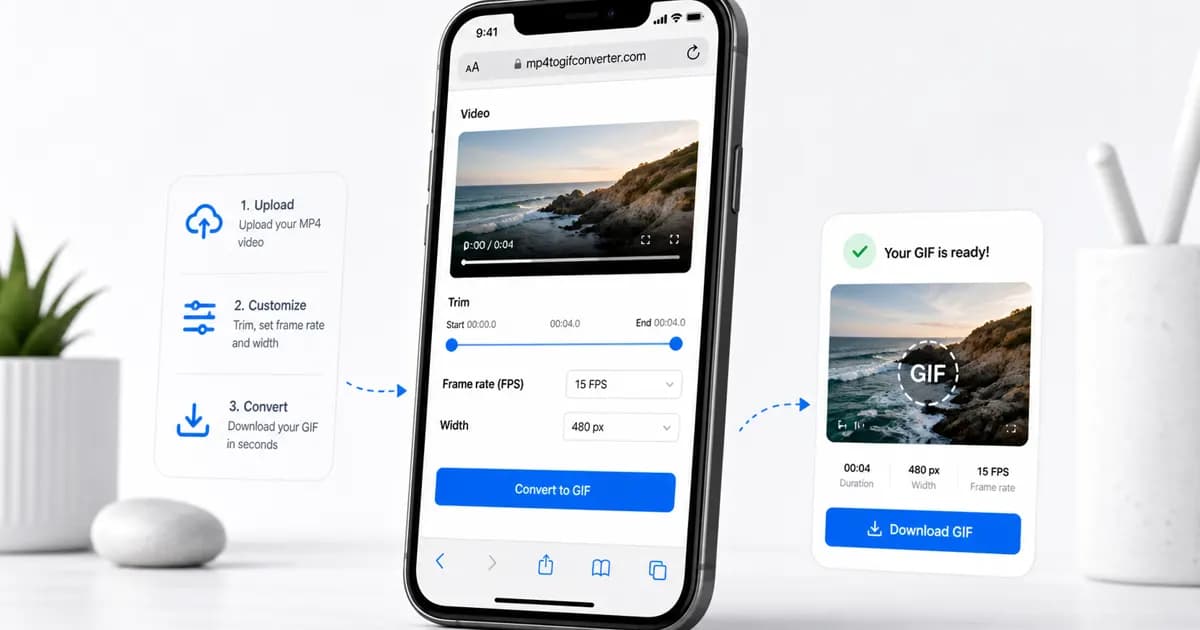
The most straightforward method to convert iPhone videos to GIFs is using Safari to run a local browser-based converter. Since the processing runs entirely client-side using WebAssembly, you do not have to upload your video to any server. This protects your personal files and ensures the conversion is fast, even on mobile data connections.
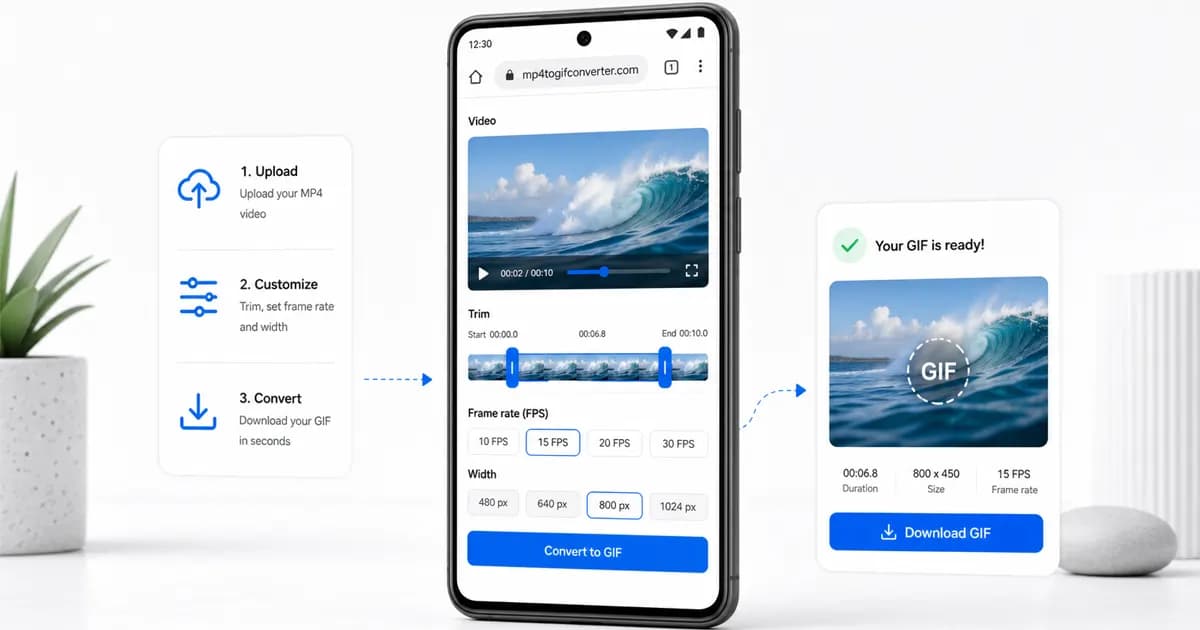
To start, open Safari and navigate to the converter. Tap the file upload area, which will open the iOS file picker. You can choose to select a video directly from your Photo Library, take a new video using your camera, or browse your files in the iCloud Drive or local Files app.
Once the video is selected, use the timeline controls to trim it. iPhone videos are often highly detailed, so trimming the clip to 3 to 5 seconds is highly recommended. Set your frame rate to 10 FPS and resolution to 480px, then tap convert. Within seconds, your GIF is compiled and ready to download.
- Open Safari and select your MP4 video file from your Photos app or Files.
- Use the slider controls to isolate the best part of the video and trim away excess frames.
- Set a moderate resolution like 480px to ensure the GIF remains small enough to send via iMessage.
- Tap the download link, then save the output directly back to your device.
Method 2: build an Apple Shortcut for offline conversions
If you prefer a completely offline solution that does not require opening a web browser, you can utilize iOS's built-in Shortcuts app. This application allows you to build custom automation workflows. By creating a basic media shortcut, you can convert videos to GIFs directly from the iOS Share Sheet.
To build the shortcut, open the Shortcuts app on your iPhone and tap the "+" icon in the top right corner to create a new flow. Add an action called "Select Photos" and configure it to filter only for videos. Next, add the "Make GIF" action immediately below it. In the options for the Make GIF action, you can toggle settings like "Seconds per Photo" and decide whether to enable auto-size.
Finally, add a "Save to Photo Album" action to ensure the finished GIF is exported back to your Photos library. You can name the shortcut something clear like "Video to GIF" and add it to your Share Sheet for quick access. While this method is highly convenient and works offline, the default iOS GIF engine offers limited compression options, often resulting in larger file sizes than specialized converters.
Method 3: use a dedicated mobile GIF app
For users who need to add creative overlays, stickers, filters, or text captions to their animations, a dedicated third-party app from the App Store may be the best fit. Apps like GIPHY or GIF Maker provide robust editing features tailored specifically for social sharing.
When using these apps, you open the tool, grant permission to access your photo library, and import your MP4 video. You can then trim the footage, select from various text fonts, add stickers, and apply color filters. Once editing is complete, the app compiles the GIF.
The primary drawback of dedicated apps is the user experience. Many free apps are cluttered with invasive advertisements, force you to create an account, add watermarks to your finished exports, or try to lock high-quality outputs behind a monthly subscription. If you only need a clean, standard conversion, a browser-based converter or the Shortcuts app is usually a much faster and cleaner alternative.
Best settings for iPhone video to GIF conversion
Because the iPhone camera captures video at high bitrates, choosing the right settings during conversion is essential to prevent massive file sizes. Pushing resolution or frame rate too high will lead to laggy playback and failed uploads.
A width of 480px is ideal for standard social sharing and messaging, balancing detail and weight. If you are converting a screen recording of an app interface where small text needs to be read, choose 640px. Use 10 FPS as a standard default, and only increase to 15 FPS if the action contains fast-moving elements.
| Use Case | Suggested Width | Suggested FPS | Target File Size |
|---|---|---|---|
| iMessage & SMS | 320px to 400px | 8 to 10 FPS | Under 1.5 MB |
| Social Media (Twitter/X) | 480px | 10 FPS | Under 3 MB |
| UI Demos & Tutorials | 640px | 10 to 15 FPS | Under 5 MB |
| High-Density Embeds | 800px | 15 FPS | Under 8 MB |
Frequently Asked Questions
Where do converted GIFs go on my iPhone?
When you save a GIF to your Photos app, iOS automatically routes it to the "Animated" album. You can find this by opening Photos, tapping the Albums tab, and scrolling down to the Media Types section.
Why does my GIF not animate when I view it on my iPhone?
Ensure you are viewing the image in the Photos app or Files app. In older versions of iOS, GIFs did not play automatically in the general library view and required opening the specific image. If it still does not play, the conversion may have failed or the file might have been saved as a static image.
Can I use the Apple Shortcuts app to convert MOV files to GIF?
Yes, the Apple Shortcuts app supports converting both MP4 and MOV files. Since iPhones record in MOV format by default, this makes Shortcuts a very convenient option for native camera footage.
How can I send a GIF on iPhone without an external app?
You can use our browser-based converter in Safari to create and download the GIF, save it to your Photos app, and then insert it directly into your Messages, Mail, or chat applications using the system share sheet.
What is the limit for sending GIFs through iMessage?
While iMessage does not have a hard limit as strict as SMS/MMS, sending files over 10MB can cause delivery failures or slow loading speeds for recipients on weak cellular connections. Keeping files under 3MB is recommended.
Ready to try it?
Convert MP4 to GIF free
Trim the clip, choose the best settings, and export locally in your browser.
Open the converter