Optimization
Best GIF Settings for FPS, Size, and Quality (2026 Guide)
Choosing the right settings for your GIF exports is a delicate balance between quality and file size. Because the GIF format is inherently inefficient, small adjustments to your frame rate, width, and duration can have a massive impact on the final file weight. This guide provides a clear cheat sheet and technical breakdown to help you choose the best settings for any platform.
Quick Answer
A configuration of 10 FPS and 480px width represents the best baseline for general sharing. Drop to 320px width for strict chat limits, or increase to 640px width at 12 FPS when you need high clarity for software guides and technical documentation.
The best default settings
Using standardized default settings saves time and ensures your GIFs remain compatible across various platforms. For the majority of daily use cases—including social sharing, chat threads, and simple web embeds—the standard configuration of 10 FPS and 480px width is highly recommended.
These settings ensure the animation runs smoothly enough to communicate motion, while keeping the resolution high enough to look crisp on both mobile and desktop screens. Most importantly, it keeps the final file size well below the common 3MB to 5MB attachment limits enforced by popular messaging apps.
If you export files without adjusting these settings, you run the risk of creating a heavy GIF that loads slowly, lags during playback, or is rejected entirely by the platform upload engine.
| Platform / Use Case | Target File Size | Recommended Width | Recommended FPS |
|---|---|---|---|
| Slack & Teams Chat | Under 2 MB | 320px to 400px | 8 to 10 FPS |
| Twitter / X Upload | Under 5 MB | 480px | 10 FPS |
| Blog & Website Embeds | Under 3 MB | 480px to 640px | 10 FPS |
| Software & UI Demos | Under 8 MB | 640px to 800px | 12 to 15 FPS |
When to use 5, 10, or 15 FPS
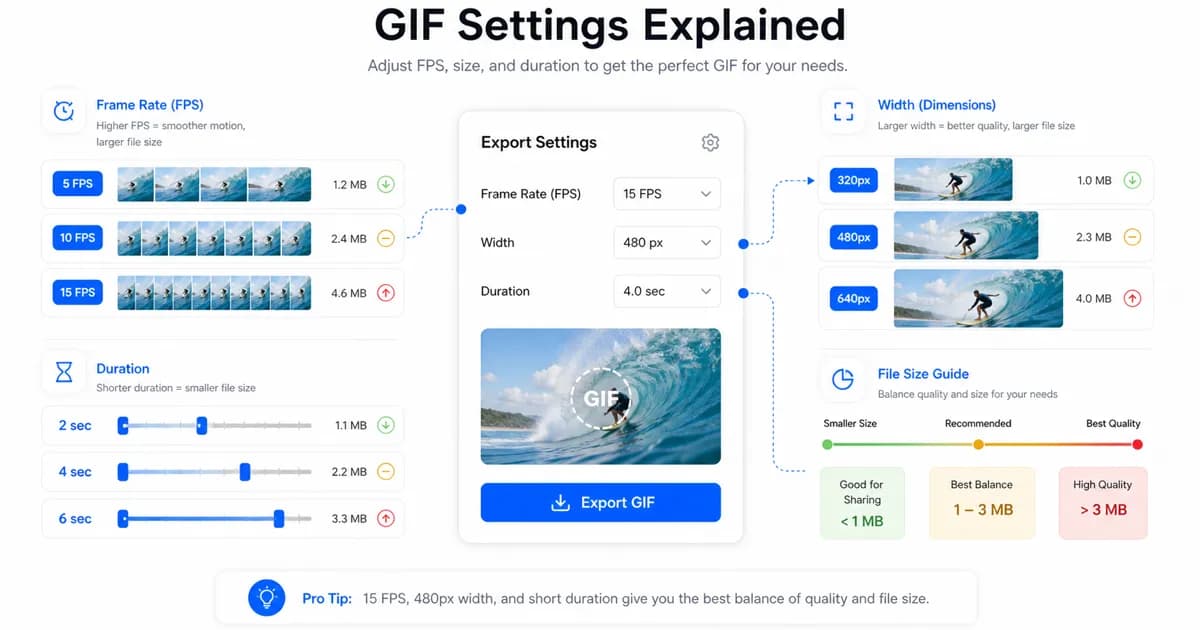
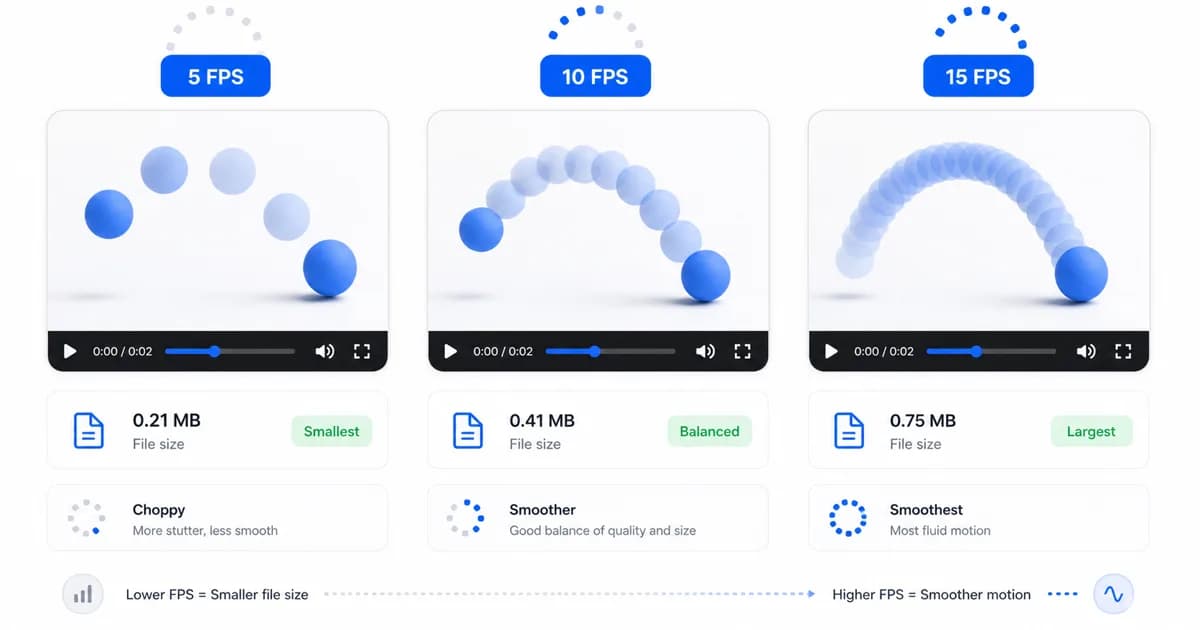
Frame rate (FPS) controls the fluid feel of your GIF. Because every added frame increases the file size linearly, choosing the right FPS is critical for optimization. A frame rate of 5 FPS is very choppy, making it unsuitable for natural motion or reactions. However, it is highly useful for static slides, simple loading indicators, or diagrams where you only need to show a basic state change.
10 FPS is the standard standard for web animations. It delivers readable motion that looks natural to the human eye while keeping the overall frame count low. This is the recommended setting for reaction GIFs, product loops, and general memes.
15 FPS should be reserved for scenarios where smooth motion is essential to understand the content. For example, if you are showing a mouse cursor clicking through a complex software menu, or demonstrating a physical gesture, 15 FPS ensures the transitions do not look disjointed. Avoid using 24 or 30 FPS, as the substantial file size increase is rarely worth the subtle difference in smoothness.
Width guidelines by use case
The width of your GIF determines its layout footprint and pixel density. For inline messaging applications, a width of 320px to 400px is perfect. It fits comfortably within chat bubbles without taking up excessive screen real estate.
For social media platforms like Twitter/X or LinkedIn, a width of 480px provides an excellent balance. It displays cleanly in the timeline without requiring long loading times.
When creating technical documentation, help center articles, or product feature guides, a width of 640px or 800px is ideal. This ensures that user interface elements, button labels, and small text remain readable. If you must use these larger widths, be sure to shorten the duration to keep the file light.
The geometric relationship between resolution and file size
Many content creators mistakenly believe that doubling the width of a GIF merely doubles its file size. In reality, resolution scales geometrically, not linearly. A GIF with a width of 320px and a height of 180px contains 57,600 pixels per frame. If you double the width to 640px and the height scales proportionally to 360px, the frame contains 230,400 pixels—four times the original pixel count.
Because each frame is stored as an independent image, this four-fold increase in pixels translates directly into a four-fold increase in raw, uncompressed byte weight before compression is applied. This is why resolution scaling is the most powerful lever you have for controlling file weight. Whenever you need to shrink an oversized file, reducing the width by even 10% can result in a disproportionately large reduction in file size, protecting your page performance.
How settings affect file size
To optimize your files, it helps to understand the math behind a GIF. The uncompressed size of a GIF is calculated as: `Frames * Width * Height * Color Depth`. Since color depth is fixed at 8-bit (256 colors), the three variables you can control are the total number of frames (determined by duration and FPS) and the resolution (width and height).
If you need to shrink an oversized file, apply optimizations in this specific order: first, trim the duration; second, reduce the width; third, lower the frame rate. This sequence ensures you achieve the maximum size reduction with the minimum impact on the overall visual quality. Additionally, verify that your conversion tool does not add unnecessary metadata or custom header tags that can inflate file sizes without providing visual returns. Pre-compressing files at early design stages is also extremely helpful.
- Trim unnecessary frames from the start and end of the loop to immediately drop file weight.
- Lower the resolution before reducing the frame rate, as pixel count has a geometric impact on file size.
- Avoid complex visual details, gradients, and camera movement to improve LZW compression efficiency.
- Use a custom color palette rather than a global one to maximize visual quality at lower settings.
- Understand that color indexing maps pixels to a maximum of 256 colors, so reducing the color count to 64 or 128 further drops the required index bit-width.
Frequently Asked Questions
What frame rate looks most natural for a GIF?
A frame rate of 10 to 12 FPS looks highly natural for standard animations, providing a clean balance of smooth movement and manageable file size.
Can I export a GIF at 60 FPS?
While technically possible, exporting a GIF at 60 FPS is highly discouraged. The file size will be massive, and many browsers and image viewers cannot render GIFs at that speed, resulting in laggy playback.
How does resolution affect the loading speed of a GIF?
Larger resolutions contain more pixel data, resulting in larger files. A larger file takes longer to download, which can cause significant page layout shifts and slow down loading speeds on mobile connections.
Should I choose 320px or 480px for Slack?
For Slack and similar business messaging platforms, 320px is generally preferred. It keeps the file small (under 1.5MB) and ensures it loads instantly in the chat window.
What is the best way to optimize a GIF for an email newsletter?
Keep the width to 480px or smaller, limit the duration to 3 seconds, set the frame rate to 10 FPS, and use a custom color palette. This keeps the file under 1MB, ensuring it displays instantly for all recipients.
Ready to try it?
Convert MP4 to GIF free
Trim the clip, choose the best settings, and export locally in your browser.
Open the converter