Platform Tips
How to Convert MP4 to GIF for Instagram (2026)
Instagram is built entirely around video and image sharing. While the main grid feed and Reels do not natively support standard animated GIF uploads, you may still need GIFs for direct messaging, grid layouts, planning apps, or custom story stickers. This guide covers the best settings to convert your MP4 files to GIFs for Instagram-adjacent sharing.
Quick Answer
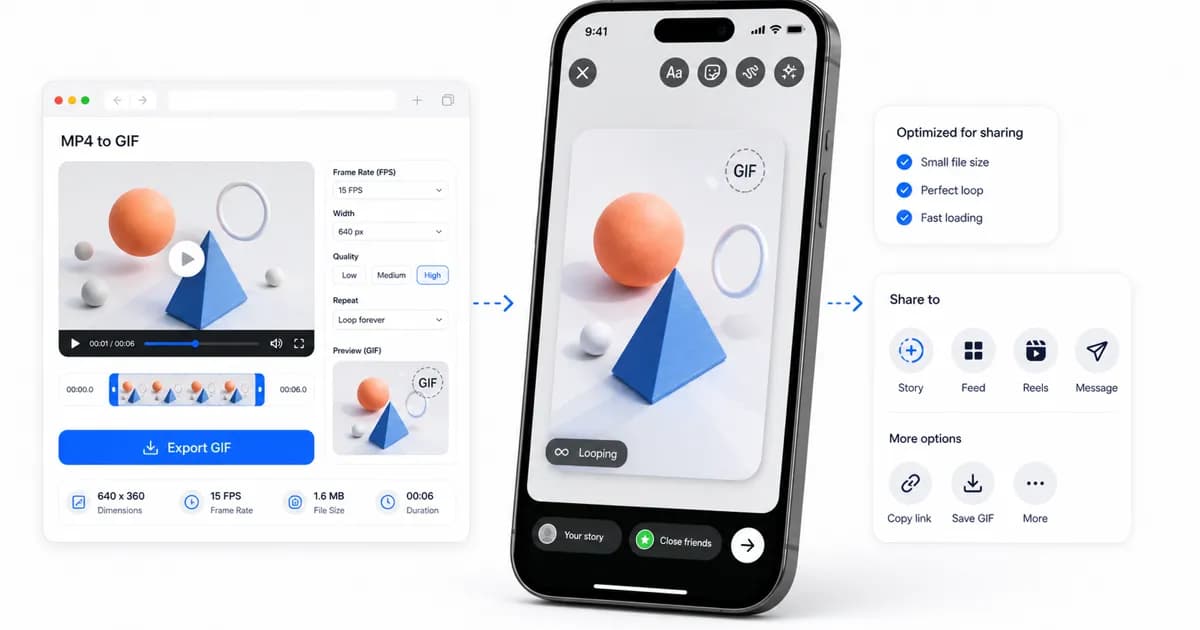
Because Instagram focuses on video, you should keep your files in MP4 format for main feed posts and Stories. Use the GIF format exclusively for direct messages (DMs), planning boards, and custom stickers, setting your resolution to 480px width at 10 FPS.
Best settings for Instagram-adjacent sharing
If you are sending animations to followers via Direct Messages (DMs) or using grid visual planning apps (like Later or Planoly), keeping the files lightweight is crucial. In DMs, a heavy GIF will display a slow loading indicator, disrupting the flow of the conversation.
To optimize your GIFs for chat threads, export them with a width of 480px. This resolution looks incredibly sharp on high-density smartphone screens without creating heavy files. Select a frame rate of 10 FPS to ensure the motion looks fluid while keeping the file size under 2MB.
If the clip is meant to be a simple sticker with a transparent background, simplify the background of your source video before converting. This improves LZW compression efficiency, allowing you to maintain sharpness at smaller sizes.
| Placement / Channel | Recommended Format | Target Size | Recommended Settings |
|---|---|---|---|
| Direct Messages (DMs) | GIF | Under 2 MB | 480px width, 10 FPS |
| Grid Planners (Later, Planoly) | GIF or PNG | Under 3 MB | 480px width, 10 FPS |
| Custom GIPHY Stickers | GIF (Transparent) | Under 5 MB | 320px width, 12 FPS |
Leveraging GIPHY's sticker system for Instagram Stories
If you want to place a custom animated GIF over your native Instagram Stories as an overlay, you cannot upload a `.gif` file directly from your camera roll. Instead, Instagram pulls its sticker database directly from GIPHY. To make your custom brand assets or funny loops searchable for Instagram users, you must set up an active artist or brand account on GIPHY.
When designing assets for GIPHY stickers, you must export them with a transparent background. This requires editing your source video to strip away solid backgrounds before running the conversion. GIPHY requires stickers to have a minimum of 20% transparent pixels and be exported as looping GIFs. Once you upload your transparent GIFs to GIPHY and tag them with descriptive labels, they will be indexed. Within a day, your custom animations will be searchable inside the Instagram Story sticker tray, letting you and your followers place them over videos seamlessly.
When to keep the file as MP4
If your target placement is the main Instagram grid feed, a Reel, or an active Story, you should avoid converting the file to GIF. Instagram's native upload engine will automatically block or convert `.gif` files to video formats, often reducing the overall quality in the process.
MP4 is the native format for Instagram. By keeping your file in MP4 format, you preserve the full 24-bit true color depth, smooth 30 or 60 FPS motion, and high-definition details. MP4 compression also keeps the file size lightweight, ensuring fast upload speeds.
- Keep files in MP4 format for native uploads to Reels, Stories, and Grid Posts.
- Use the legacy GIF format for Direct Messages (DMs), planning tools, and custom stickers.
- Remember that Instagram Stories automatically loop short video files under 15 seconds, delivering a GIF-like experience with video-quality sharpness.
- Choose a vertical aspect ratio (9:16) for Stories and Reels to maximize screen usage.
How to make your GIFs easier to reuse
If you manage social media accounts, organizing your creative assets is key to efficiency. When converting video files, always preserve the original high-resolution MP4 video file as your master copy.
Export the GIF as a secondary asset labeled with the resolution and frame rate (e.g., `promo-clip-480px-10fps.gif`). This allows you to quickly locate the right file size for DMs or planning boards, while retaining the raw footage if you need to generate a different export format later.
Organizing your assets inside structured folders (such as `/visuals/raw-mp4/` and `/visuals/optimized-gifs/`) will save countless hours when running multi-channel marketing campaigns. Additionally, keep a consistent naming convention that includes key settings (like resolution, duration, and target platform) to easily reference files for future repurposing. For example, keeping folders for raw footage, master drafts, and final platform assets helps team members locate files instantly without searching.
Frequently Asked Questions
Can I upload a GIF directly to my Instagram feed?
No, you cannot. Instagram's main grid feed and Reels do not support the `.gif` file extension. To post an animation, you must upload it as a video file (like MP4) or share it as a Story.
How do I use custom GIFs in my Instagram Stories?
You can add custom GIFs to your Stories using the GIPHY sticker integration. To do this, you must set up an artist channel on GIPHY, upload your transparent GIFs, and wait for them to be approved; they will then appear in the Instagram sticker search.
Why does my GIF not play in Instagram Direct Messages?
This is usually caused by the file being too heavy, resulting in loading failures. Ensure your GIF is under 2MB and saved in the correct format. If the issue persists, try closing and reopening the app to clear the cache.
What video aspect ratio works best for Instagram?
For Stories, Reels, and vertical posts, an aspect ratio of 9:16 (1080x1920 pixels) is recommended. For square feed posts, a 1:1 aspect ratio (1080x1080 pixels) works best.
Can I convert a GIF back to MP4 on my phone?
Yes, you can. You can use our online GIF-to-MP4 converter tool in your mobile browser to convert any animated GIF back to an MP4 video file, making it ready to upload directly to Instagram.
Ready to try it?
Convert MP4 to GIF free
Trim the clip, choose the best settings, and export locally in your browser.
Open the converter