Platform Tips
How to Convert MP4 to GIF for Discord (Under 8MB, 2026)
Sharing custom animated GIFs on Discord is a fun way to interact, but the platform's strict upload limits can make it difficult. Standard free Discord accounts are limited to a maximum upload size of 8MB per file. If your converted GIF exceeds this limit, Discord will block the upload. This guide shows you how to convert your MP4 files to GIFs with settings optimized to stay safely under Discord's file limits.
Quick Answer
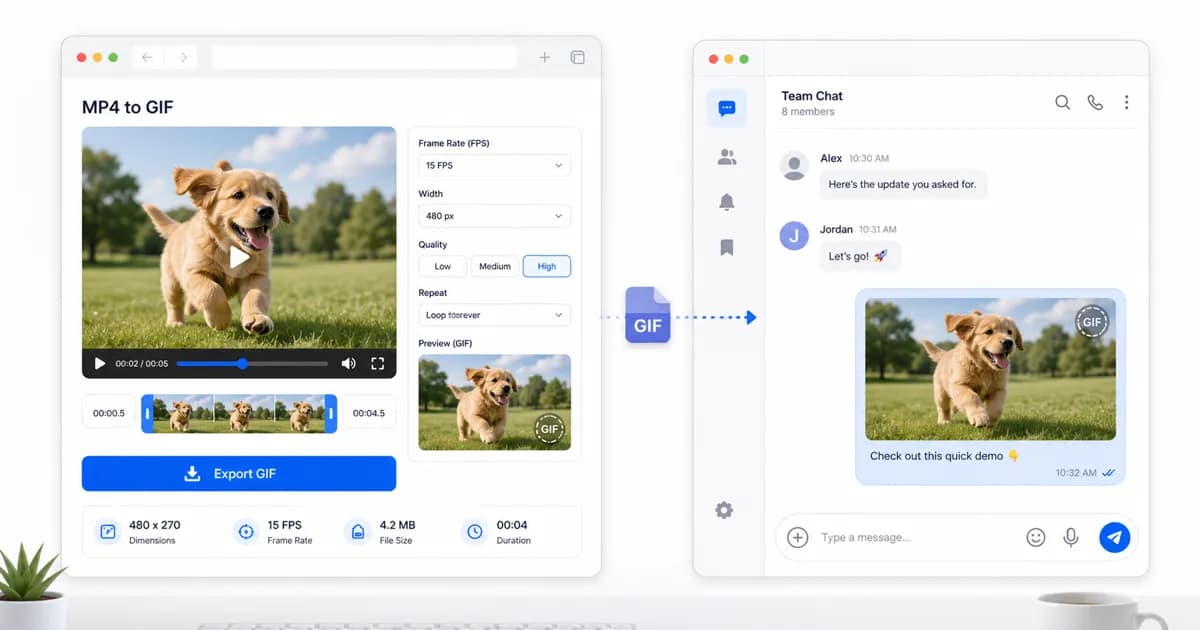
To keep your Discord GIFs under the 8MB limit, trim the video to under 5 seconds, set the resolution width to 480px, and configure the frame rate to 10 FPS. For longer clips, drop the resolution to 320px width to manage file weight.
Why the Discord upload limit matters
Discord enforces file upload limits to manage server bandwidth and ensure chat threads load quickly for all users. For free accounts, this limit is set to 8MB. While Discord Nitro subscribers can upload larger files (up to 100MB or 500MB depending on the plan), sending massive files in busy chat servers is still bad practice.
Heavy files load slowly, causing lag and consuming mobile data for other users in the channel. If your GIF is too heavy, it will display as a static thumbnail that users have to tap to load, defeating the purpose of an instant animation.
Therefore, learning how to optimize your GIFs ensures your content loads instantly and animations play smoothly for everyone in your chat channels.
The best settings for Discord GIF exports
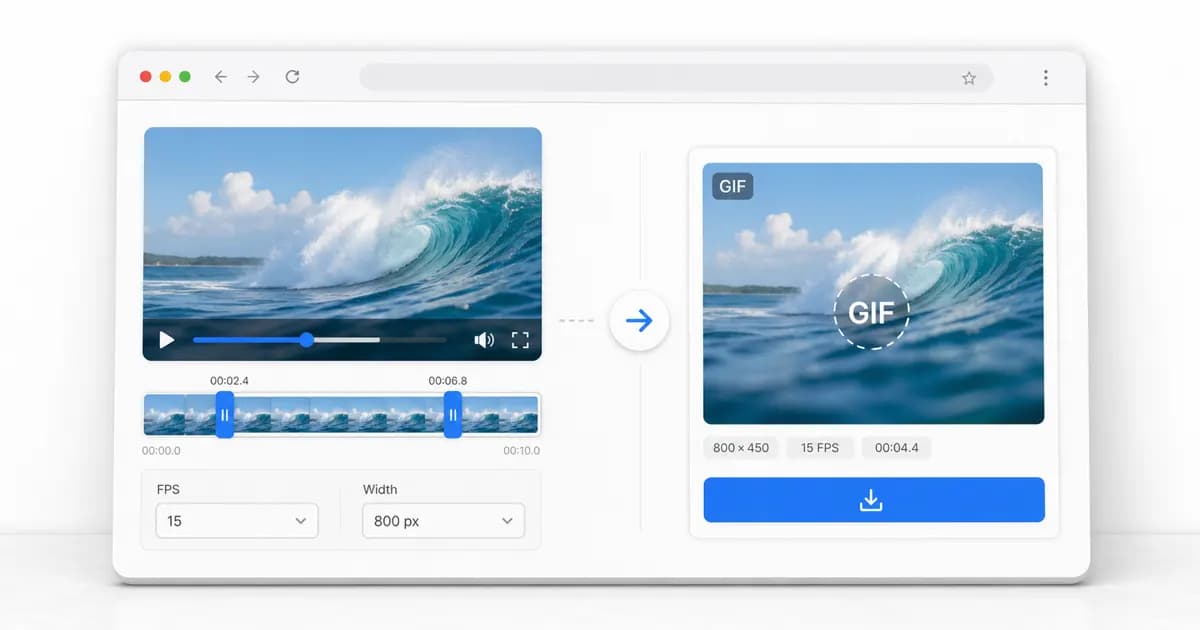
To keep your GIF under the 8MB limit, you must adjust the three main export settings: duration, resolution, and frame rate. Shorter clips are much easier to keep under the size limit.
For a short 3-second reaction clip, you can afford a higher resolution (480px width) and a smoother frame rate (12 FPS). However, if you are sharing a longer 10-second gameplay loop or software walkthrough, you must lower the settings to 320px width and 8 FPS to prevent the file size from exceeding the upload cap.
| Clip Duration | Recommended Width | Recommended FPS | Estimated File Size |
|---|---|---|---|
| Under 3 seconds | 480px | 12 to 15 FPS | 2 MB to 4 MB |
| 3 to 5 seconds | 480px | 10 FPS | 4 MB to 6 MB |
| 5 to 8 seconds | 320px to 400px | 10 FPS | 5 MB to 7 MB |
| 8 to 12 seconds | 320px | 8 FPS | 6 MB to 8 MB |
How Discord Nitro affects GIF attachments
If you subscribe to Discord Nitro or Nitro Basic, your upload threshold increases significantly. Nitro Basic raises your file limit to 50MB, while the premium Nitro subscription enables files up to 500MB. While this extra headroom is convenient, relying on it to send heavy, unoptimized GIFs is a common pitfall. Many users accessing Discord on mobile networks have slow connections; a 40MB GIF will appear as a static box and lag their interface.
Furthermore, Discord utilizes local device caching to display media instantly. If a server is flooded with large file attachments, the Discord app cache can grow rapidly, leading to slowdowns and elevated system storage usage on phones. By keeping your GIFs pre-optimized under the standard 8MB limit, you guarantee that every user in your server views your animation immediately without network delays, regardless of their subscription tier.
What to do if the GIF is still too large
If your exported GIF is still slightly over the 8MB line, you do not have to start the conversion from scratch. You can apply a few quick optimization tricks to squeeze the file size down.
First, check if you can trim another second of footage. Trimming has a direct impact on size. Second, reduce the color palette. If your source video has flat colors (like gameplay UI or screen recordings), exporting with 128 colors instead of 256 will shrink the file weight significantly without altering the image. Finally, run the GIF through a lossy compressor to discard redundant pixel data and maximize the efficiency of the file compression.
- Trim away static frames at the start or end of the video loop.
- Drop resolution to 320px width to quickly reduce pixel volume.
- Use a custom color palette of 128 colors for simple screen recordings.
- Apply lossy GIF compression to shrink the file by an extra 20% to 30%.
When MP4 is the better answer for Discord
In some scenarios, a GIF is simply the wrong tool for the job. If your clip is longer than 15 seconds, has high details, or contains audio that is essential to the loop, you should keep the file in MP4 format.
Discord supports native video embedding. When you upload an MP4, Discord displays a video player directly in the chat. If you mute the video, many clients will autoplay it in the thread. An MP4 video of a gameplay highlights reel can easily run for 30 seconds at 60 FPS while remaining under the 8MB limit, something that is completely impossible with the legacy GIF format.
Frequently Asked Questions
What is the absolute maximum file size for Discord GIFs?
For free Discord users, the absolute limit is 8MB. For Nitro Basic users, the limit is 50MB, and for full Nitro users, the limit is 500MB. However, keeping files under 5MB is recommended so they load quickly for everyone.
Why does my GIF not loop in Discord chat?
Ensure the file is saved as a true animated GIF and not a static image file. Additionally, if the file is extremely large, Discord may pause autoplay to save system memory; users will have to hover over or click the image to play it.
How do I compress a GIF to make it fit under 8MB?
You can compress a heavy GIF by reducing its width to 480px or 320px, lowering the frame rate to 10 FPS, or running it through a lossy optimization tool to reduce redundant pixel data.
Can I upload MP4 files directly to Discord instead of GIFs?
Yes, you can. Discord has native support for MP4 files. When uploaded, they will render in a built-in media player where users can play, pause, and control the audio.
How do I add a custom GIF to the Discord GIF picker?
Discord uses GIPHY and Tenor for its built-in GIF picker. To get your custom GIF in the picker, you must upload it to Tenor or GIPHY and wait for it to be indexed. For quick personal sharing, simply uploading the file directly to your chat channel is much faster.
Ready to try it?
Convert MP4 to GIF free
Trim the clip, choose the best settings, and export locally in your browser.
Open the converter